Your GL (General Ledger) account determines where Paystand posts your transfer activity in NetSuite. This guide covers both halves of that setup: creating a new GL account in NetSuite, and telling Paystand which GL account to use.
|
These two tasks happen in different places. Part 1 is done in NetSuite — only needed if the GL account does not exist yet. Part 2 is done in the Paystand Configuration — this is what actually changes which account Paystand uses. If the GL account already exists in NetSuite, skip straight to Part 2. |
Before you start
- A NetSuite role with permission to edit the Chart of Accounts (typically Administrator).
- Access to the Paystand Configuration.
- The subsidiary the account applies to. The subsidiary you choose in NetSuite must match the one you edit in Paystand, or the account will not appear in the drop-down.
Part 1 — Create a GL account in NetSuite
Skip this section if the GL account you need already exists.
1. In NetSuite, click Setup > Accounting.

2. Click Chart of Accounts, then click New.

3. Enter the Name of the GL account. Use a name you will recognise later in the Paystand drop-down.

4. Click the Currency drop-down to open it.

5. Select the Currency for the account.

6. Select the Subsidiary this GL account applies to.
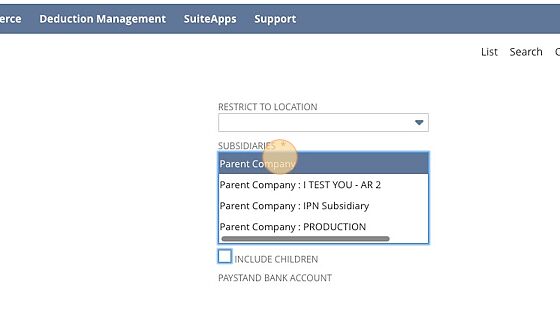
7. Click Save.

| The new account becomes available in Paystand once it is saved in NetSuite. Continue to Part 2 to start using it. |
Part 2 — Choose the GL account in the Paystand Configuration
This is the step that changes which GL account Paystand posts to.
1. Click the Configuration button in Paystand.

2. Find the subsidiary you want to update and click Edit.

3. Scroll down to the Transfer Report section. The GL account fields are here.

4. Click the drop-down and select the bank account you want to use.

5. Click Save.
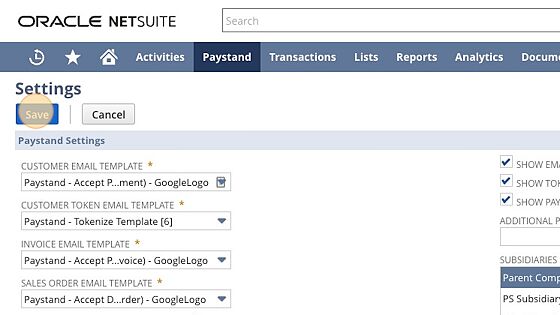
| This change applies going forward, not retroactively. Transfer reports that have already been generated keep the GL account that was set at the time they were created. If you need an existing transfer report re-posted to a new account, contact Paystand Support. |
Troubleshooting
The new GL account is not in the Paystand drop-down.
Check that the account was saved in NetSuite, and that its subsidiary matches the subsidiary you are editing in Paystand. A GL account created under one subsidiary will not appear when you edit a different one.
I have more than one subsidiary.
The GL account is set per subsidiary. Repeat Part 2 for each subsidiary you want to change.
I am not sure which account to choose.
This is an accounting decision specific to your chart of accounts. Check with your accounting team before changing it, as it affects where your settlement activity is recorded.
Need help?
Contact Paystand Support at support@paystand.com with your subsidiary name and the GL account you are trying to use.