Paystand now allows you to assign a Payment Experience directly at the customer level. This enhancement centralizes configuration and ensures that each customer consistently sees the correct checkout experience when accessing the checkout process.
You can assign a Payment Experience either individually within a customer’s profile or in bulk from the Customer List. Once assigned, the selected configuration automatically applies to that customer’s payments.
Option 1: Customer Profile
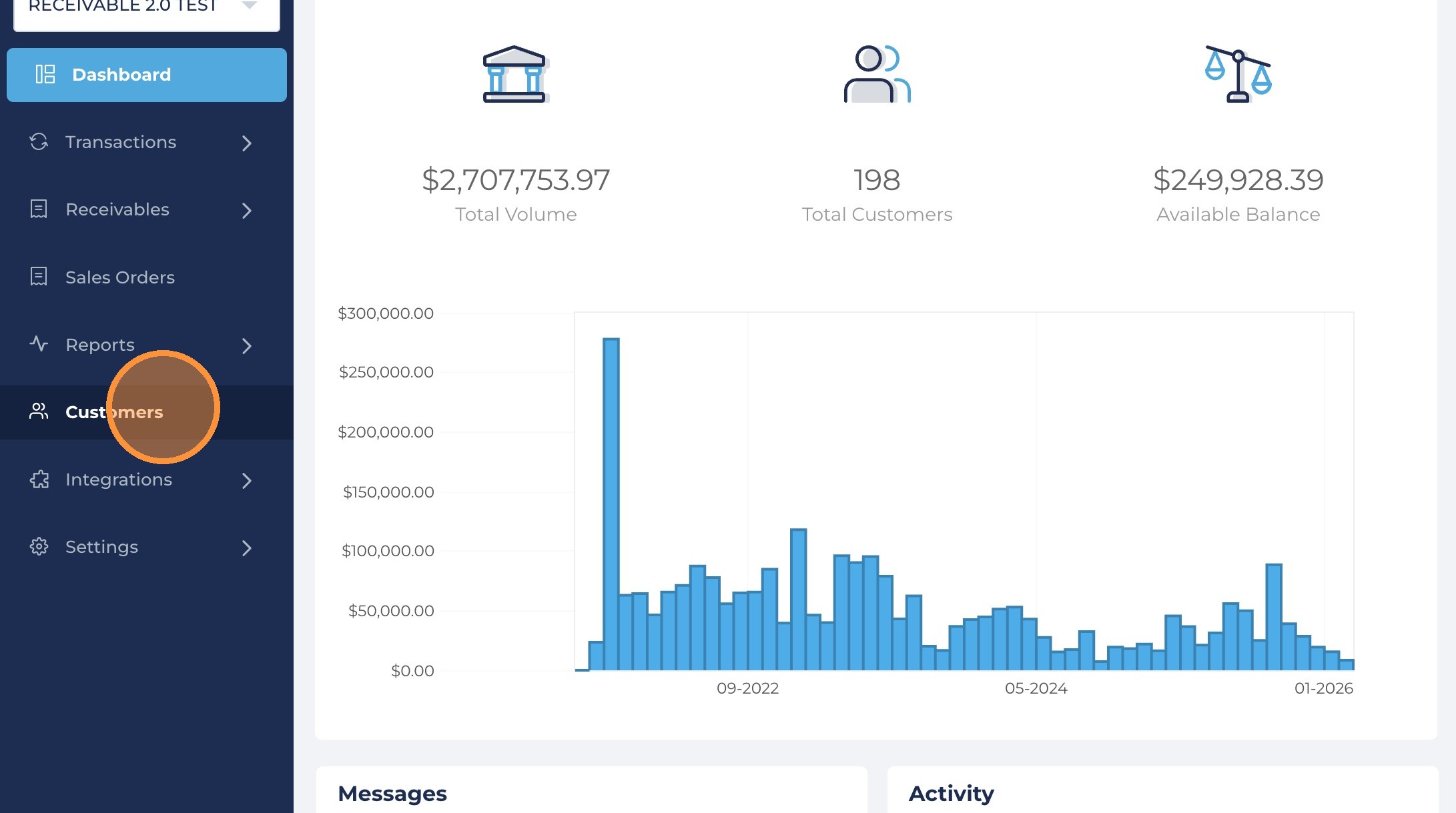
1. Navigate to the Customer tab
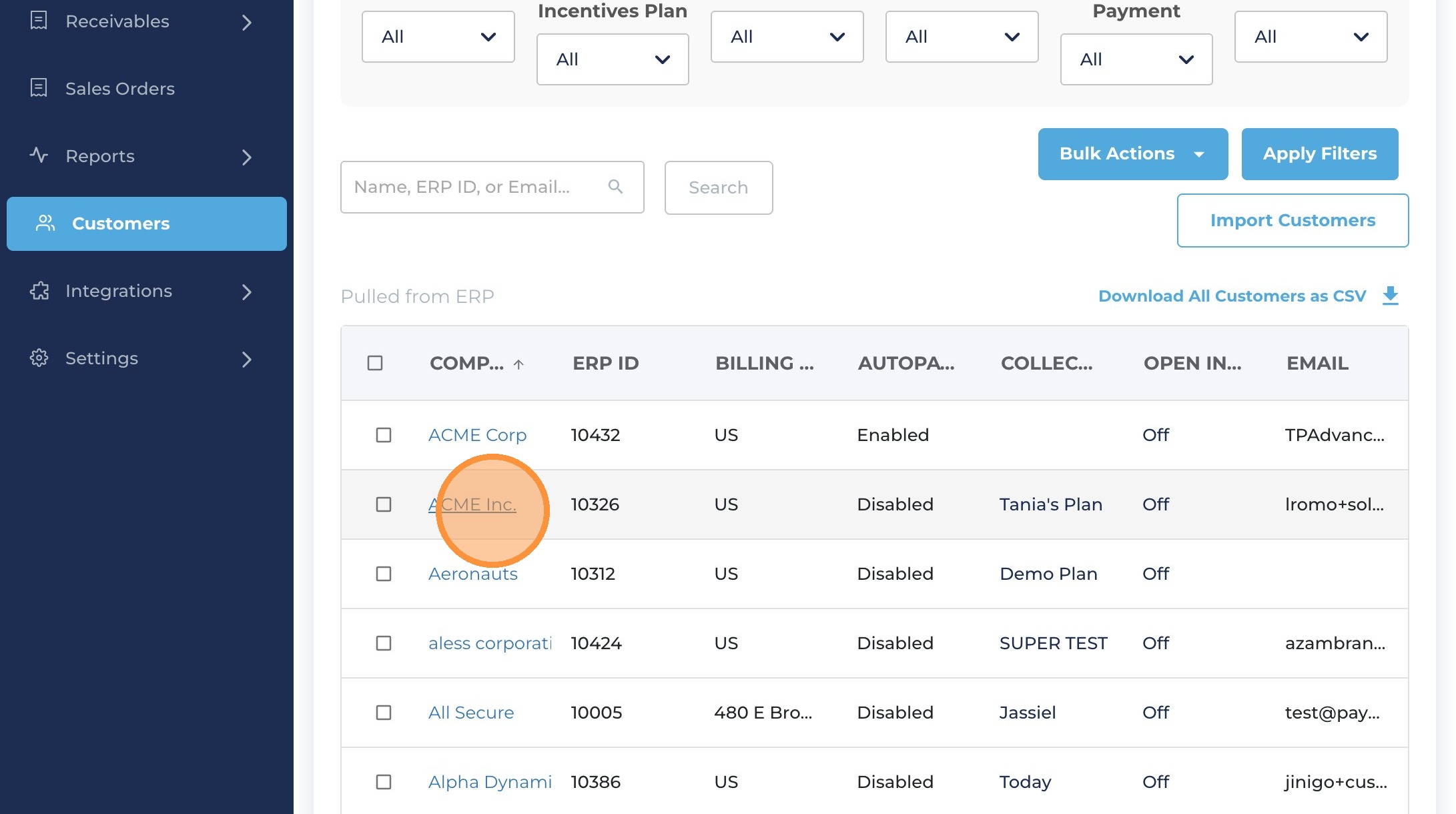
2. From the customer list, click on the customer for whom you will assign a new Payer experience.
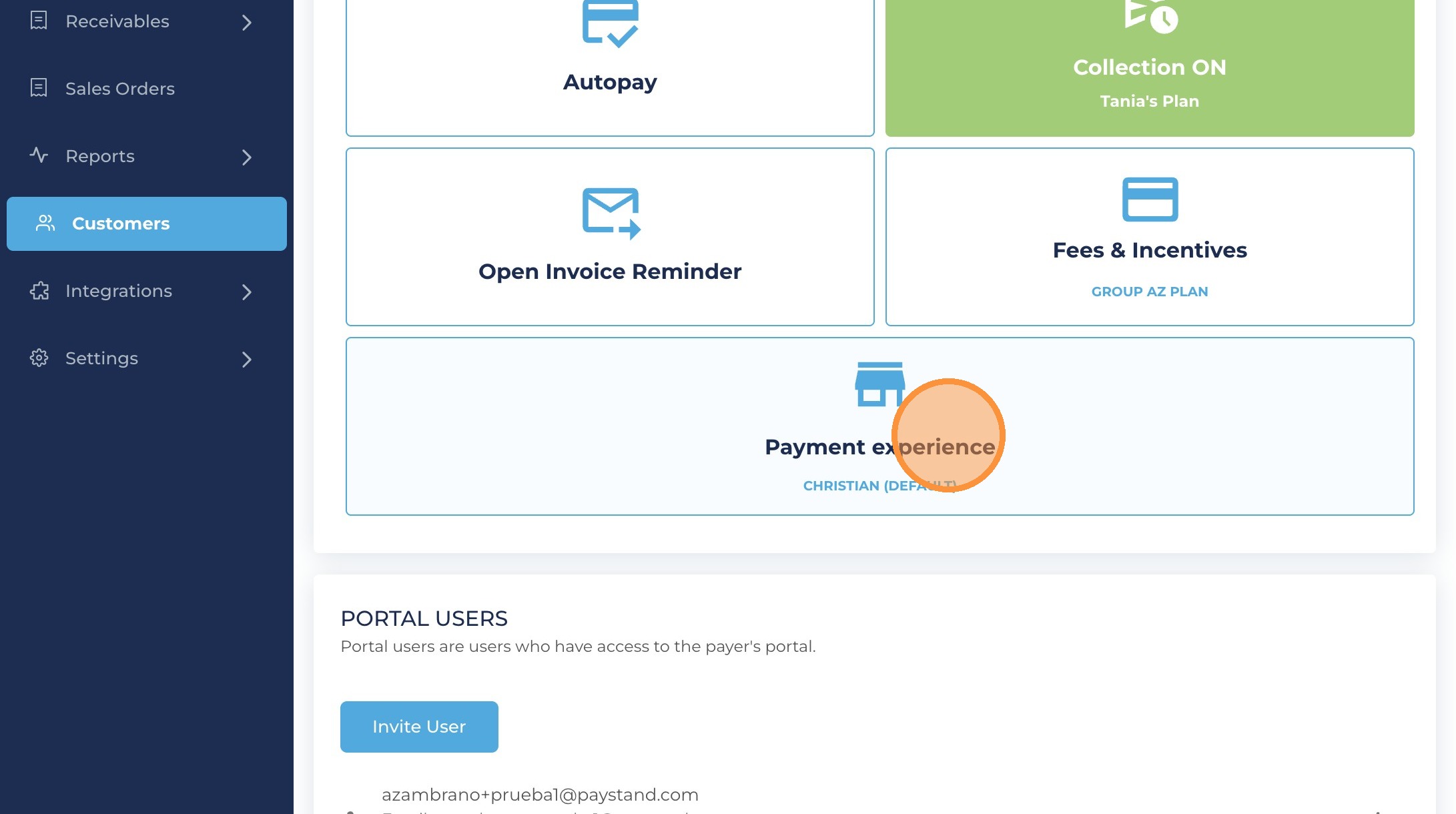
3. Within the customer profile, go to Receivable Settings for customer,, select the box “Payment experience”.
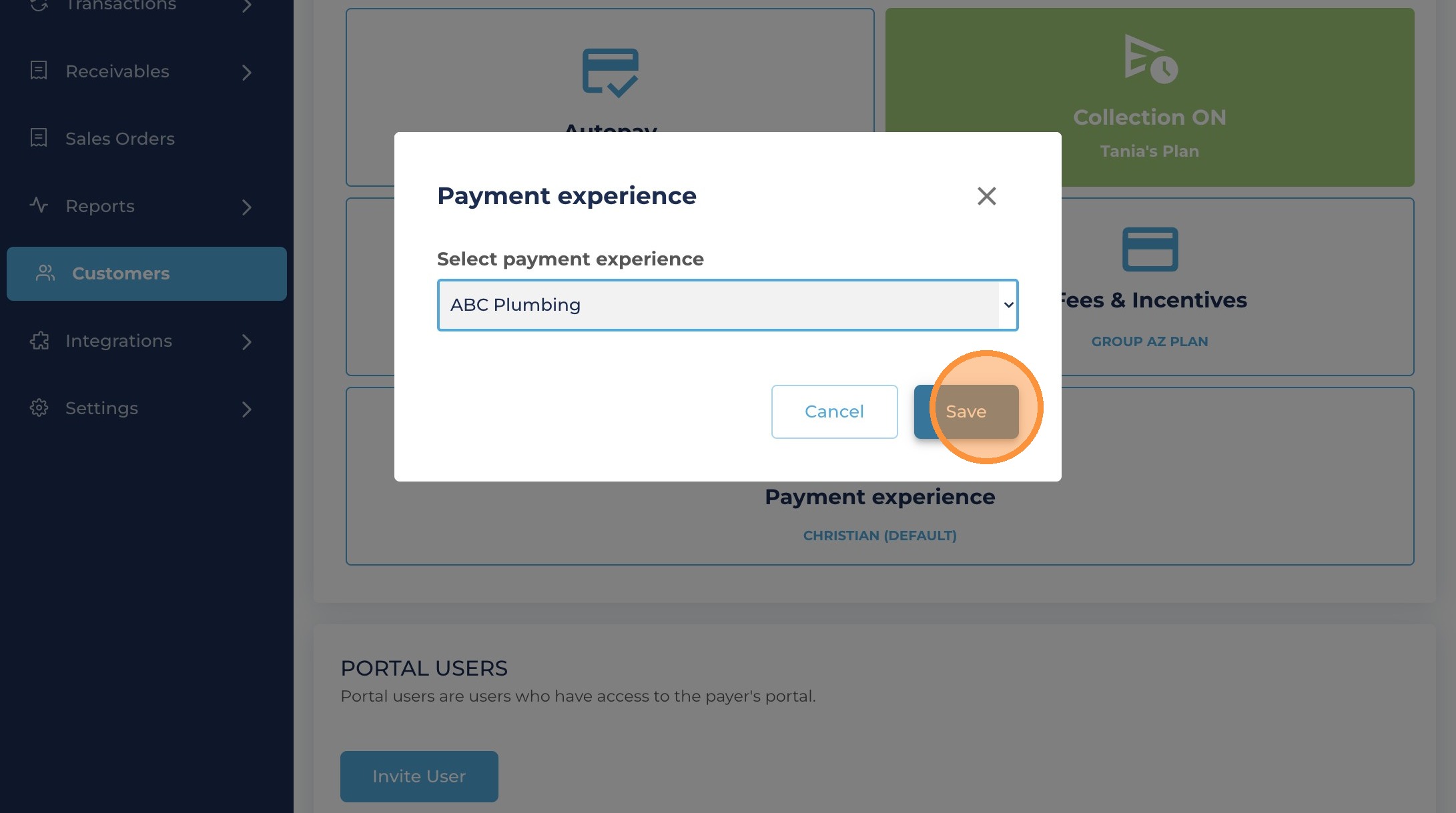
4. Select the payment experience you will assign to the customer & click save.
5. After selecting the desired option and saving your changes, the assigned configuration will appear in the Payment Experience field, confirming that the update was successful.
Option 2: Bulk actions
6. Navigate to the customer tab & Select one or more customers from the list
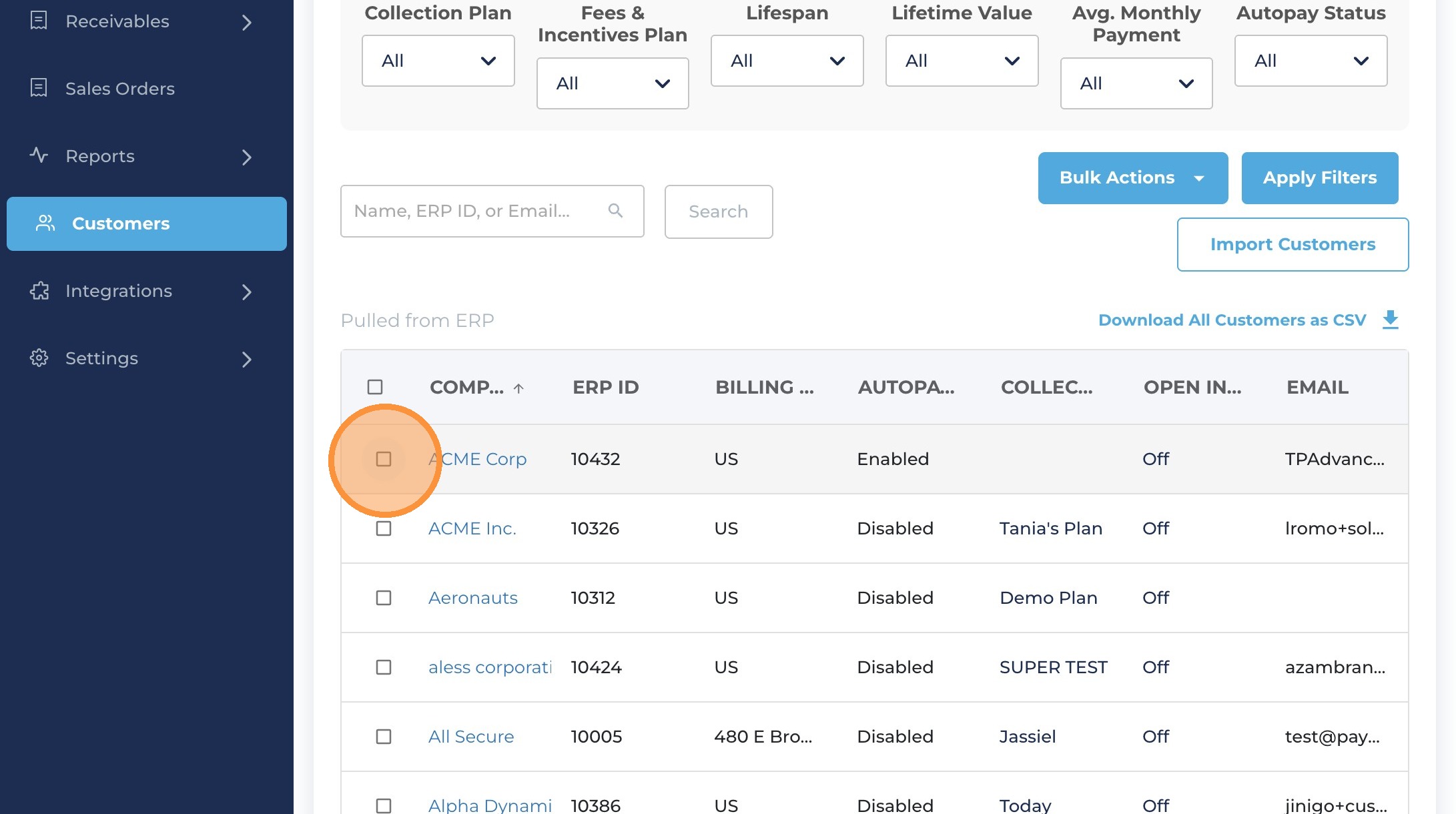
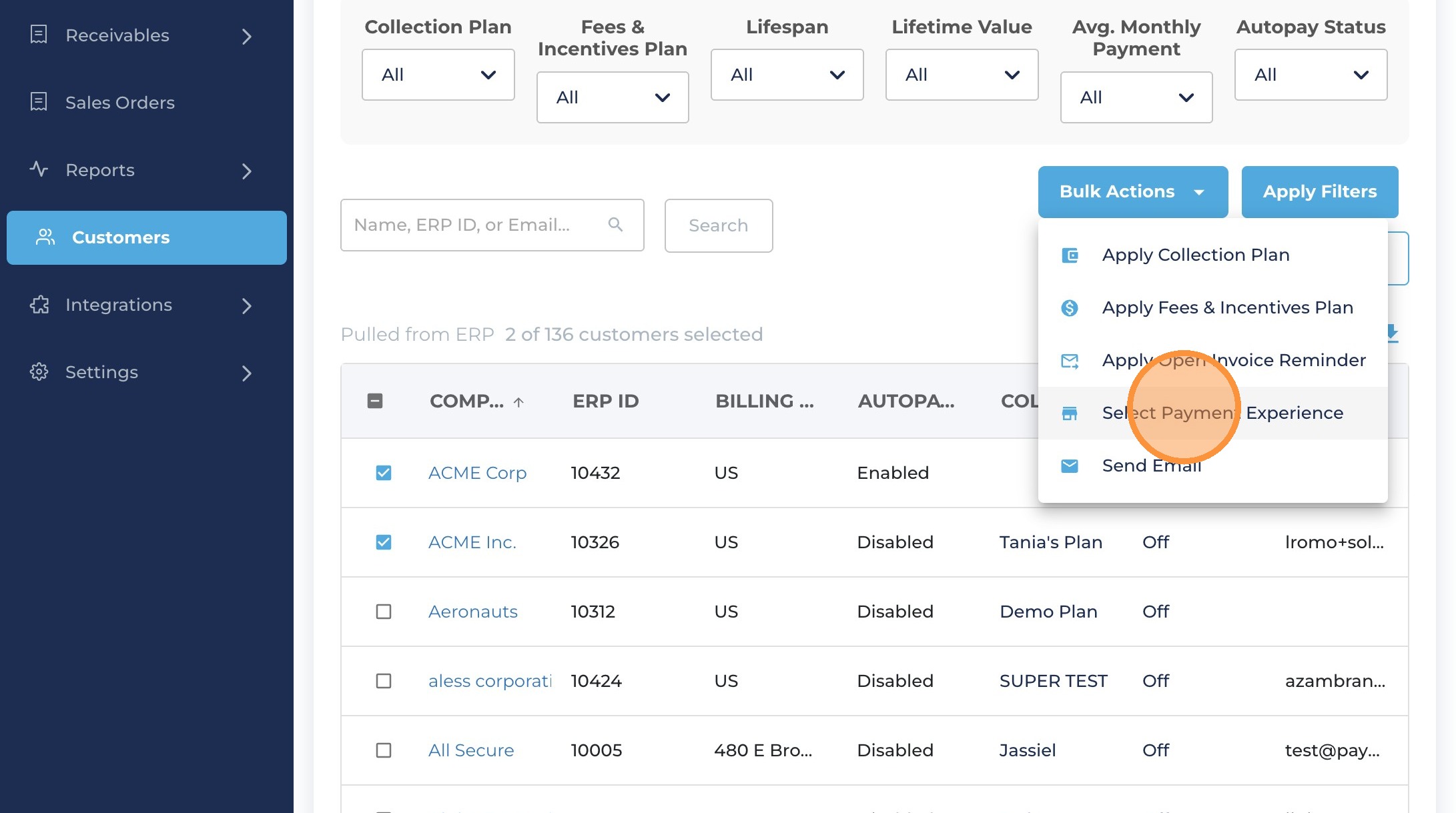
7. Click Bulk actions button and select the option “Select payment experience”
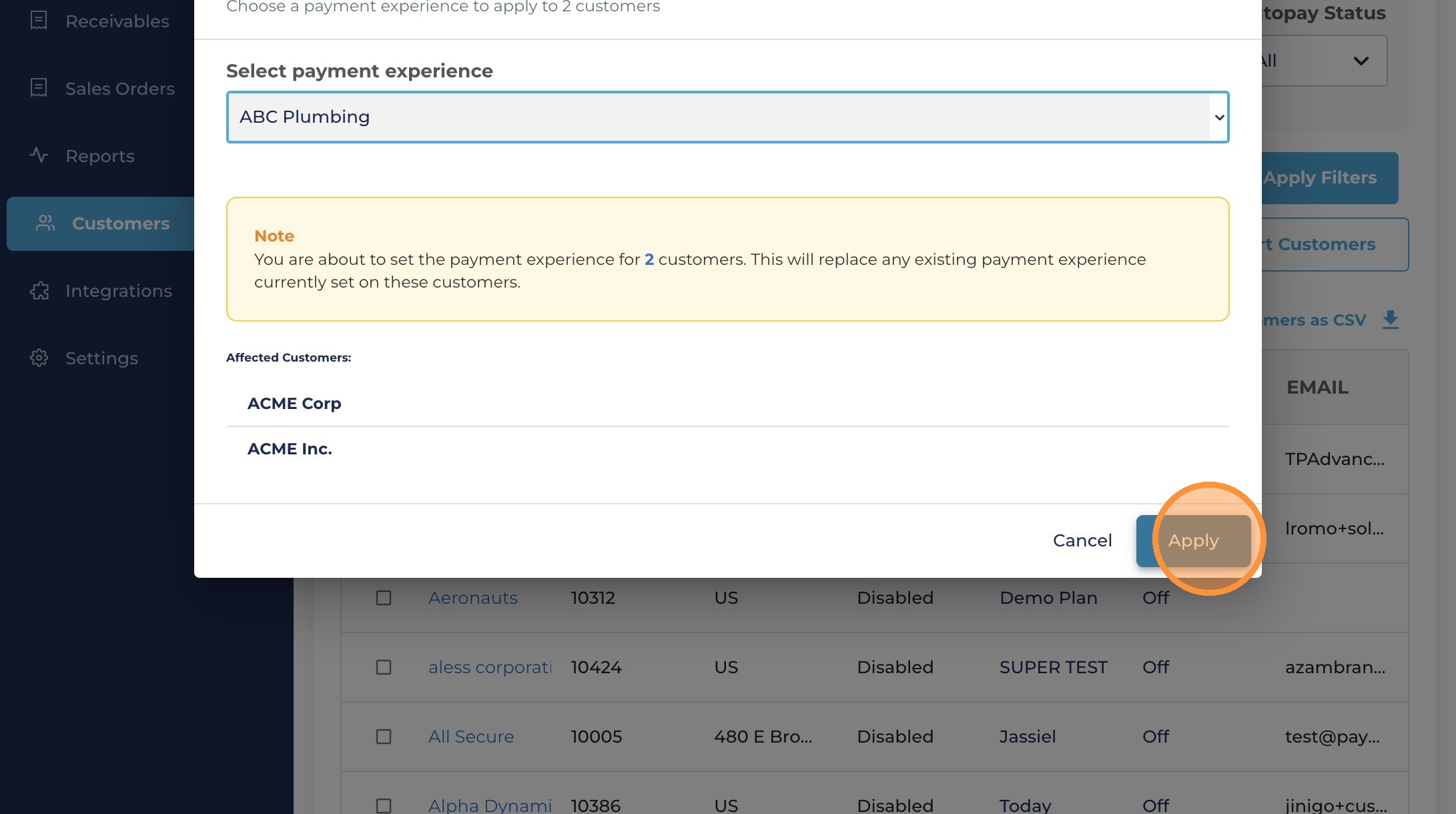
8. Select the Payment Experience you would like to assign to the selected customers, then click Apply to confirm the update.
Tip: Important Considerations
- Applies to Automated Collections
When a Payment Experience is assigned at the customer level, it will automatically apply to:
Automated collections & Payer portal payments - Default Behavior (If No Payment Experience Is Assigned)
If a customer does not have a specific Payment Experience configured:
The system will automatically use your default Payment Experience
This guarantees that every customer always has a valid checkout experience, even if no customer-level assignment is made.
If you have additional questions about configuring Payment Experiences, please contact your Paystand representative.