This guide explains how to invite, activate, and manage payer portal users from the Paystand Dashboard. These steps help administrators securely control access, support customer collaboration, and ensure each payer has the correct login credentials.
Invite a new payer portal user
1. On the Paystand Dashboard, click the Customers tab.

2. From the customer list, click on the customer for whom you will create a new Payer portal user.

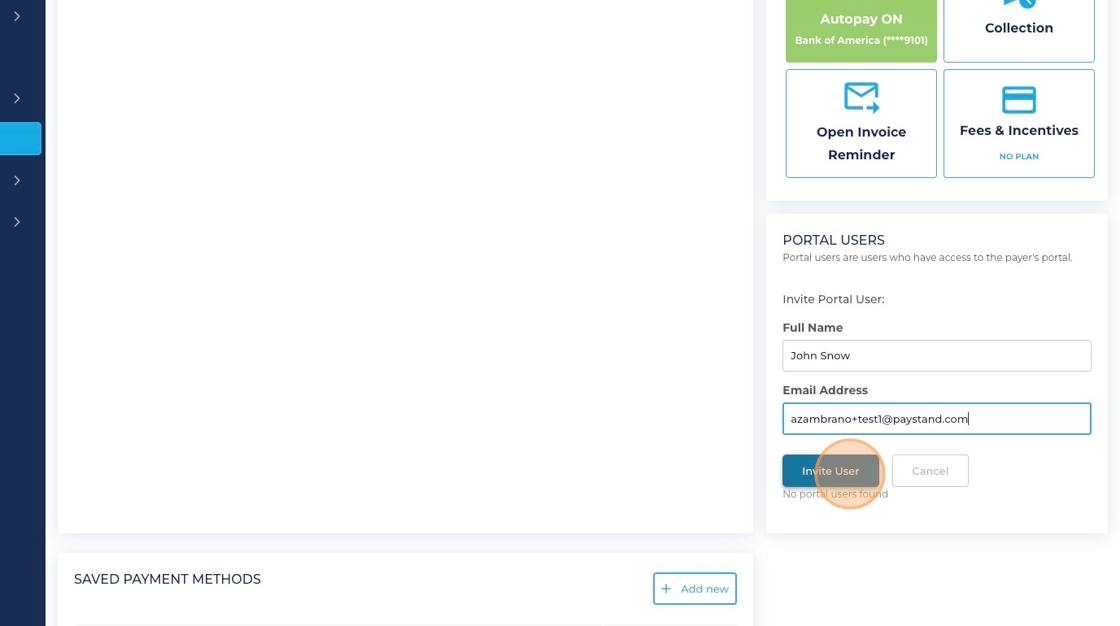
3. Under the Receivables Settings section, locate the Portal Users area and click Invite User.

4. Enter the new user’s full name and email address in the corresponding fields.

5. Click "Invite User"
6. A pop-up message will appear confirming that the portal invitation was sent successfully.

What to expect
- The payer receives an email with a secure link to create their account
- The link guides them through choosing their name and password
- The new credentials will be used for all future payer portal logins
Activate the payer portal account (payer steps)
1. The user will receive an email containing a link to create their account in the payer portal.

2. The user must fill in the Name and Password fields. The password entered will be the new one used to access the payer portal.

3. Click Continue

4. A new pop-up will appear confirming that an email has been sent to the user to activate their account.

5. Click Confirm Email

6. The user needs to fill the email and password to log in

7. Click Log in

8. Finally, the user can access their payer portal to view transactions, payables, and billing information.

Manage existing users
From the Paystand Dashboard, the user can also be disabled if needed.

Tips
- Disable users immediately when roles change to ensure secure access
- Encourage payers to save the activation email in case they need to reference their setup steps