Paystand requires additional security verification to update the bank account on file. Only an Admin user can request and authorize this change.
Important
- Only Admin users can update a bank account
- If you have Clerk access and need to update a bank account, you can either request Admin access or reach out to your Admin user to complete the change.
Change Bank Account
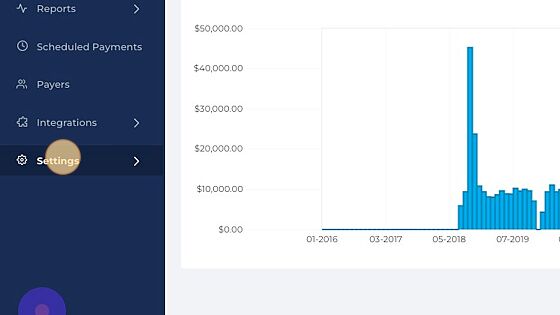
1. Click Settings
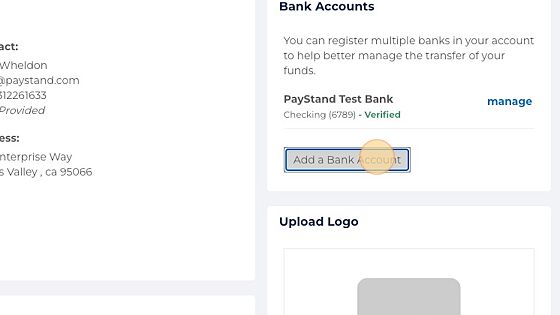
2. Click Add a Bank Account
3. Type the Account Holder's Name.
Select the Currency.
Select the Account Type.
Select the Account Holder Type.
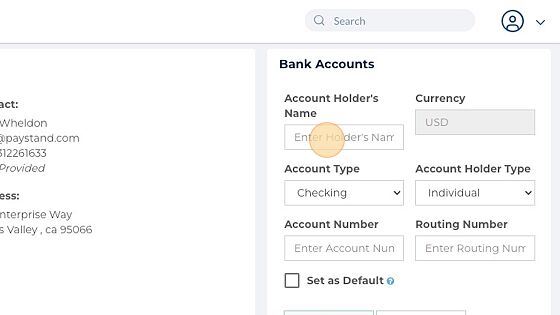
4. Enter the Account Number.
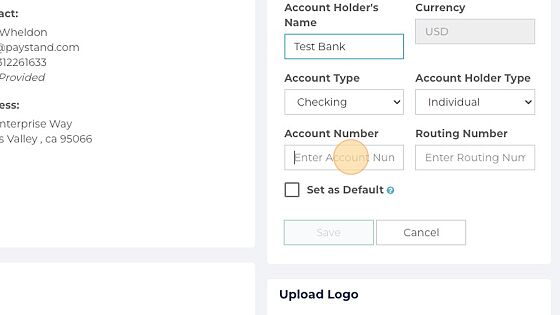
5. Enter the Routing Number.
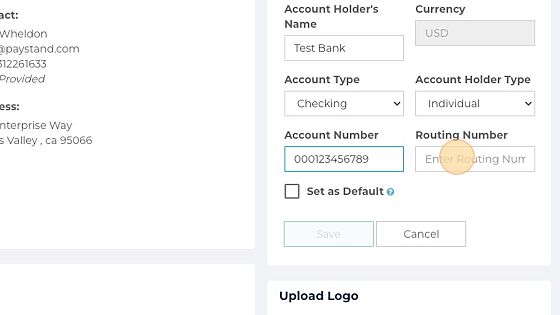
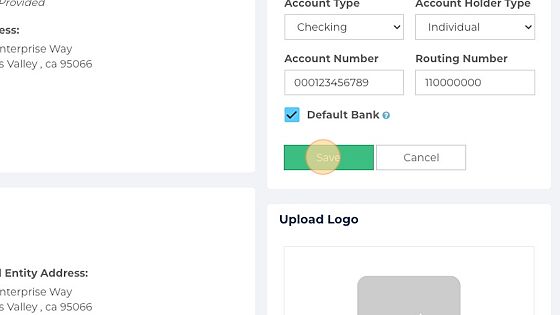
6. If you want to set the account as the default one, click the checkbox Set as Default
7. Click Save
Two-Drop Verification
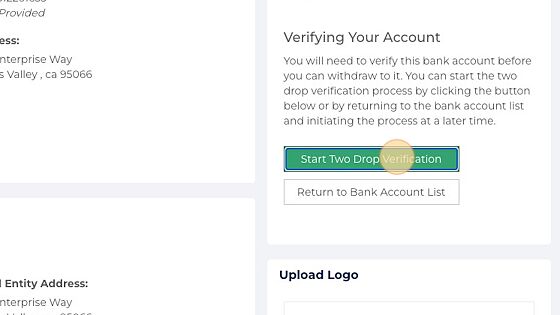
1. Once the bank account has been added, it needs to be verified by using a two-drop deposit to be able to receive withdrawals/deposits.
Click Start Two Drop Verification to start the process.
2. Click Drop
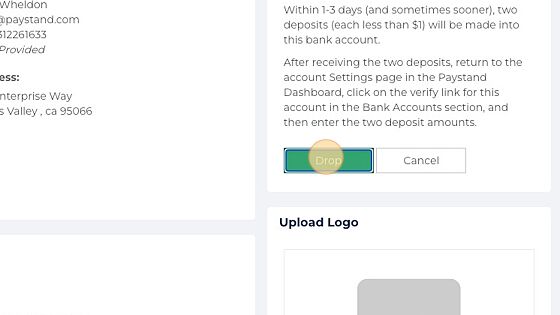
Within 1-3 days (and sometimes sooner), two deposits (each less than $1) will be made into this bank account.
Verifying a Bank account
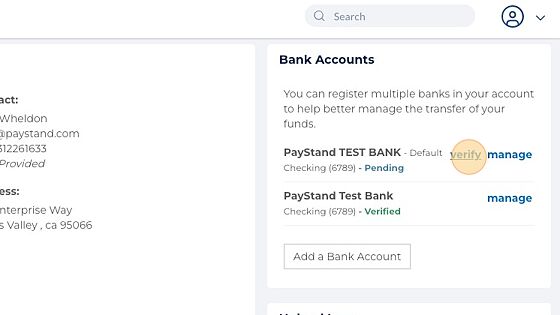
1. Click verify
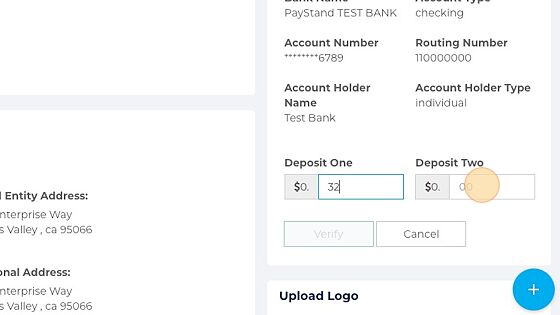
2. Enter the amount of the two deposits received in your bank account
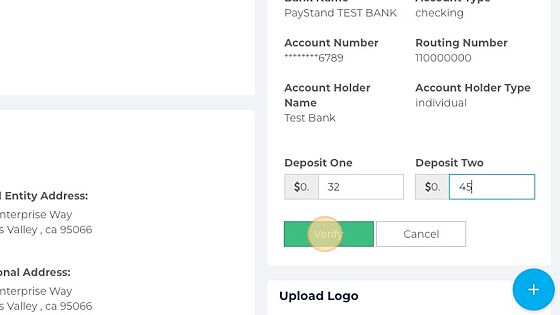
3. Click Verify
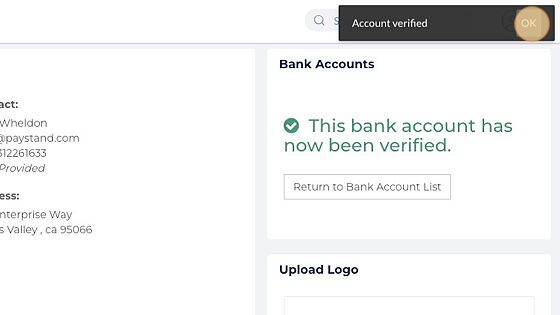
4. Click "OK"