The Bulk Apply feature in Paystand allows you to assign Collections Plans and Fees & Incentives Plans to multiple customers at once, saving time and streamlining your AR workflows.
This functionality also includes advanced filtering options, enabling you to segment customer records quickly.
This article will walk you through using Bulk Apply, from filtering and selecting customers to applying plans with just a few clicks.
Filtering and Bulk Applying Plans to Customers
1. Click the Customers tab.

2. The Customers tab now includes five new filters designed to help you segment and manage customer records more efficiently:
- Collection Plan
- Fees & Incentives Plan
- Lifespan
- Lifetime Value
- Average Monthly Payment
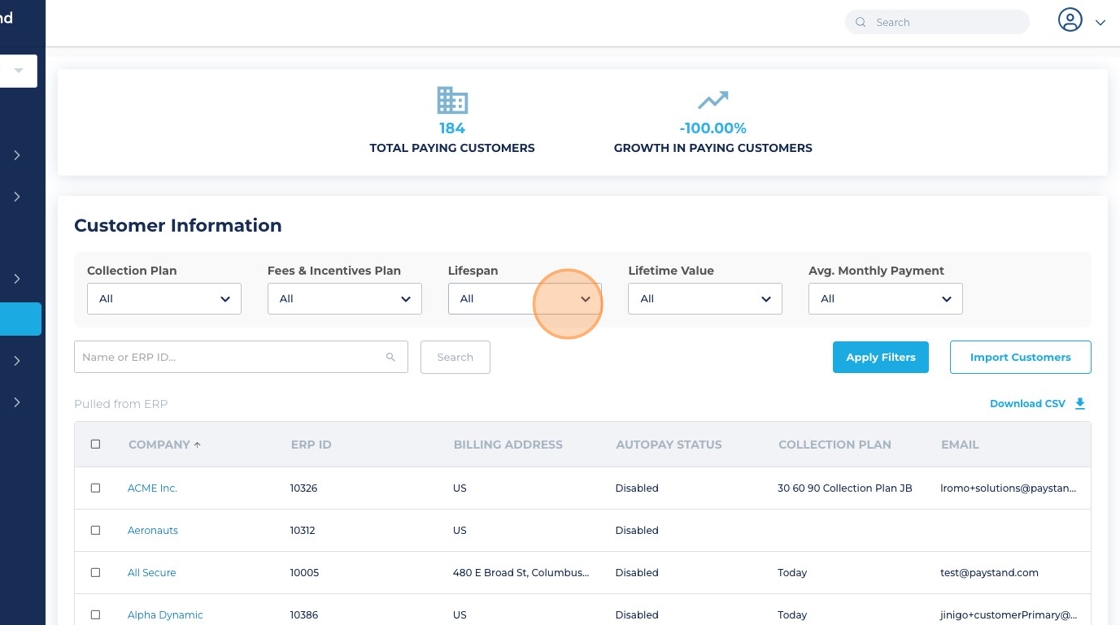
3. To use:
- Apply any combination of filters.
- Click Apply Filters.
- The table will reload to display only customers matching the selected criteria.

Multi-Select & Bulk Actions
1. A new checkbox column has been added to the left side of the Customers table, allowing you to select one or multiple customer records.
Once at least one customer is selected, a Bulk Actions button will appear, enabling you to perform actions across multiple customers at once.

2. Available Actions:
- Apply Collection Plan
- Apply Fees & Incentives Plan

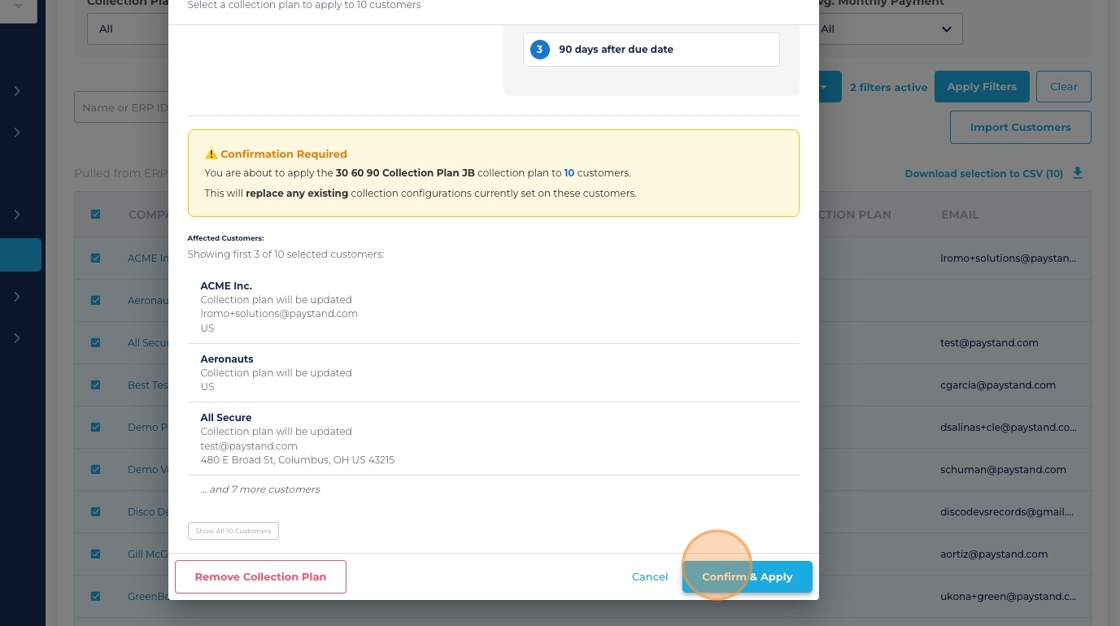
3. Once Apply Collection Plan is selected from Bulk Actions:
A pop-up will appear prompting you to:
- Select a Collection Plan
- Choose a Payment Experience
- Click Confirm & Apply to update all selected customers

Bulk Plan Removal Process
- Open the same pop-up screen.
- Click the Remove Collection Plan button.

3. A confirmation dialog will appear listing all selected customers.
4. Click Confirm Removal to apply.

5. Click Confirm & Apply
Apply or Remove Fees & Incentives Plan
1. Select customers via checkboxes.
2. Click Bulk Actions and select Apply Fees & Incentives Plan.

3. Choose the desired plan or No Plan to remove the Fees & Incentives plan.

4. Click Confirm & Apply
