The Virtual Terminal (VT) in Paystand for Sage Intacct makes it easy to process payments directly from your dashboard. With VT, you can:
- Apply payments to open invoices
- Use saved payment tokens
- Capture new tokens to keep on file
Once processed, payments automatically update the invoice status in Paystand and post back to the corresponding record in Sage Intacct.
Processing payments using the Virtual Terminal
1. Click Receivables

2. Select the invoice you want to pay

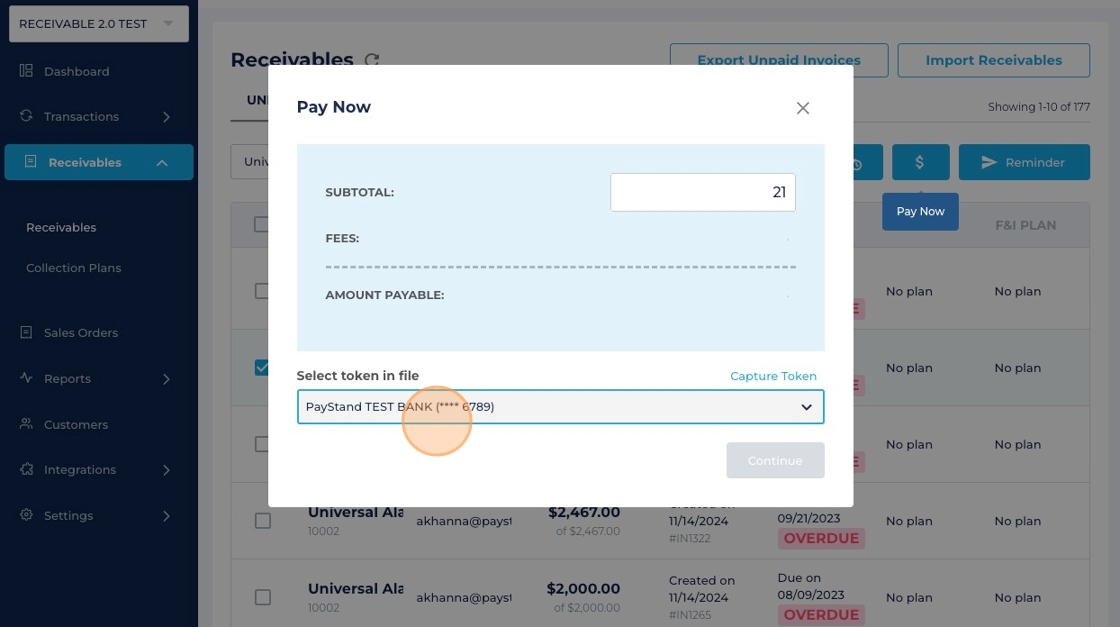
3. Click the Pay Now button to open the Virtual Terminal

4. Choose an existing saved token, or capture a new token for future use.
Processing Payments with Saved Token
1. Use a token that has been previously saved as a payment method on file in the drop-down and click Continue

2. Click Pay Now

Process Payments by Capturing a New Token
1. Click on Capture Token

2. Select ACH or Credit Card

3. Enter the payment information and click Save

4. Back in the Virtual Terminal, select the newly added token

5. Click Continue

6. Click Pay Now

7. A confirmation message appears at the top of the screen once the payment has been processed

What to expect
- The invoice status updates to Paid automatically
- The amount due is adjusted accordingly
- The payment is posted to the corresponding invoice in Sage
