Credit memos are now available and can be applied during the payer checkout experience. The workflow will adapt depending on whether the customer has one or multiple invoices and/or credit memos.
How It Works
- When a payer enters the checkout experience, they can see the credits available.
- The payer can select one or more credit memos to apply toward the invoice.
- If the credit memos do not fully cover the invoice amount, the payer will be responsible for paying the remaining balance.
- The checkout page will automatically update to display the adjusted amount due after credits are applied.
Once the payment is submitted, Paystand will automatically reflect the credit memo application in your Business Central posted sales invoice(s), ensuring your ERP records are updated without any manual reconciliation.
Things to Know
- Only Posted Credit Memos can be applied via checkout
- Only Posted Credit Memos in the same currency as the sales invoice(s) being paid will be displayed at checkout
- Convenience fees do not apply to amounts covered by credit memos
This feature allows you to streamline your accounts receivable process, give payers more flexibility, and keep Business Central in sync with payment activity in Paystand.
Scenario 1 — Paying a remaining balance
- One invoice and multiple credit memos that don’t fully cover the total — the payer must pay the remaining balance
1. If the payer has a single invoice due and multiple available credit memos, the checkout will first present the Credits tab. From there, the payer can select one or more credit memos to apply toward the invoice. Any remaining balance can then be paid in the following step.

2. Once the payer selects one or more credit memos, the applied amount will display in the summary on the right-hand side.
In this scenario, the credits only partially cover the invoice, so the payer must pay the remaining balance using one of the available payment methods.

3. After selecting the applicable credit memos, the payer clicks Continue to Payment Selection to move forward. They will then be directed to the payment method screen to complete any remaining balance.

4. The payer then chooses their preferred payment method.

5. Once the payer enters their payment information and billing address, they simply click the Pay button to complete the transaction.

Scenario 2 — Credit memo covers the full amount
- One invoice and credit memos that fully cover the total — no payment is required
1. When a payer has a single invoice due along with multiple available credit memos, the checkout will begin on the Credits tab. The payer can select one or more credit memos to apply toward the invoice amount before moving on to pay any outstanding balance.

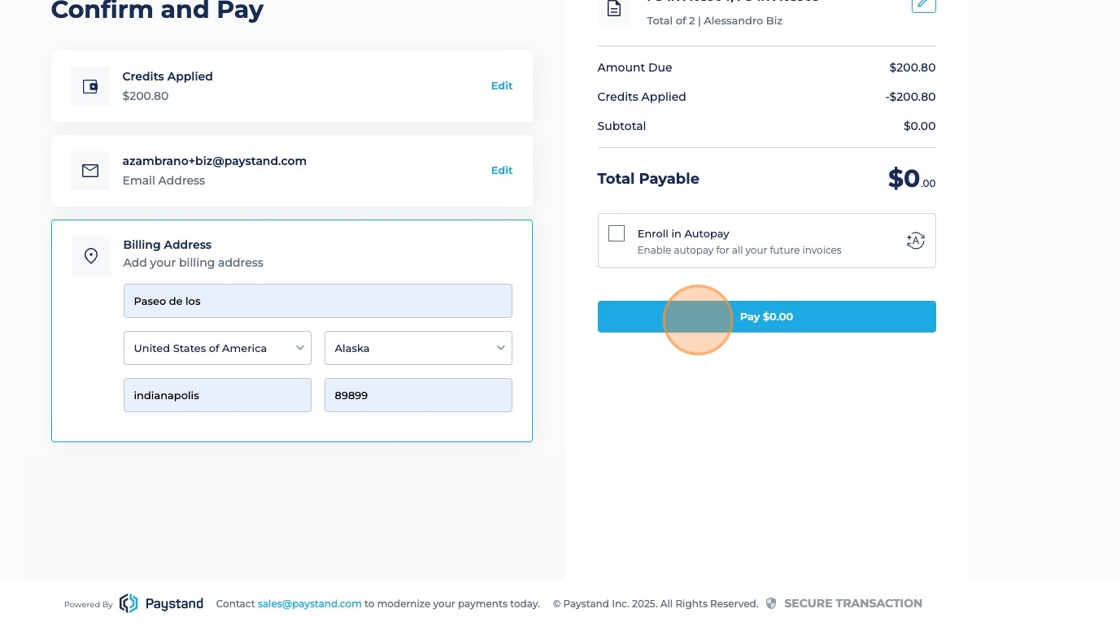
2. In this case, the payer selected credit memos covering the due amount. As a result, the Total Payable displayed on the right side will be $0, and no further payment method is required.

3. After confirming the credits that fully cover the invoice, the payer clicks Continue to Payment Selection. Since no additional payment is needed, they are redirected directly to the Billing Address step to complete the checkout.

4. The payer fills out the required Billing Address information. This step is necessary even if the total amount due is fully covered by credit memos.

5. Finally, the payer clicks the Pay $0 button to complete the transaction. The invoice will be marked as paid using the applied credit memos.

Scenario 3 — Using multiple credits
- Multiple invoices and one or more credit memos — credits are applied in order, and any leftover amount is shown as balance due
1. When the payer has multiple invoices, they will first be directed to the Invoices tab. Here, they can select which invoices they want to pay during this checkout session.

2. After selecting the invoices, the payer clicks Continue to Credit Selection and is directed to the Credits tab. Here, they can apply any available credit memos toward the selected invoices.

3. If the payer applies credit memos totaling more than the selected invoices, the Amount Due will be reduced to $0. Any remaining credit balance will be automatically saved and available for future payments.

4. After applying credits, the payer clicks the Continue button.
If any balance remains, they proceed to the Payment Method selection.
If the balance is $0, they are redirected directly to the Billing Address step.

5. After filling in the billing information, the payer clicks the Pay button to finalize the payment and mark the invoices as paid.