This guide provides a detailed, step-by-step process for manually reversing a payment in Sage and reopening the corresponding invoice in Paystand. By following these instructions, merchants can successfully reverse a payment in Sage—regardless of the reason—and manually reflect this change in Paystand by updating the invoice status accordingly.
How to Reopen an Invoice for Sage
1. Navigate to the Receivables tab in the Paystand Dashboard.

2. Click on the Paid section to view completed invoices.

3. Select the invoice for which you want to reverse the payment.

4. Copy the invoice number

5. Switch to Sage Intacct and click Applications

6. Click Accounts Receivable
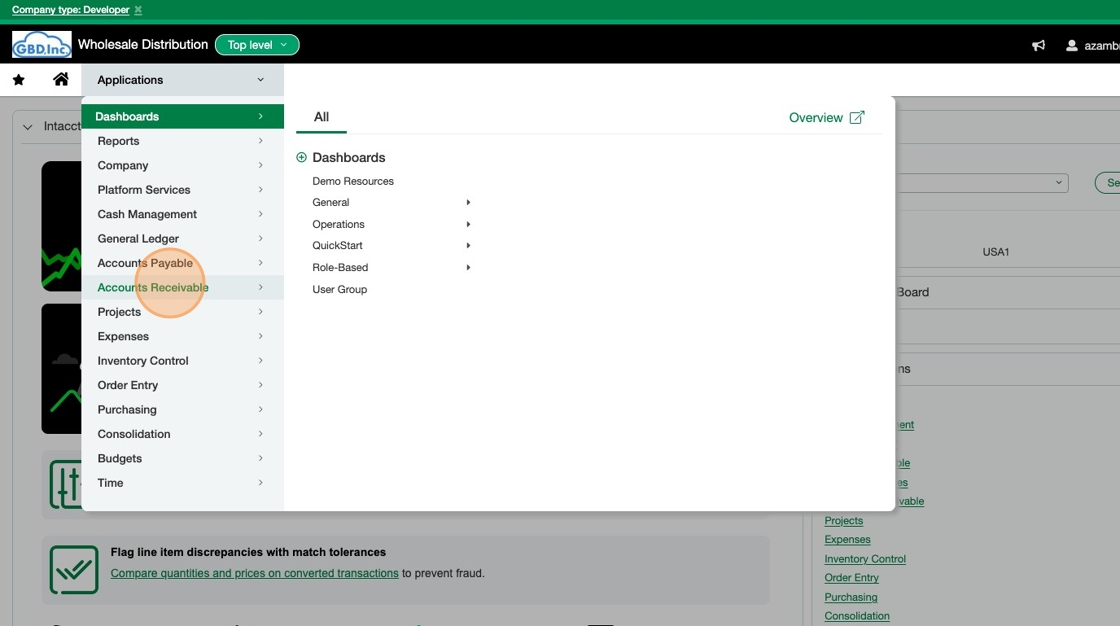
7. Click Invoices

8. Paste the copied invoice number into the invoice search field.

9. Click View

10. Click on the payment link associated with the invoice.

11. Copy the Payment ID

12. Click Accounts Receivable

13. Click Posted payments

14. Click on the Payment ID search field and paste the copied ID.

15. Click Include Private checkbox.

16. Once you have find the Payment ID click Reverse
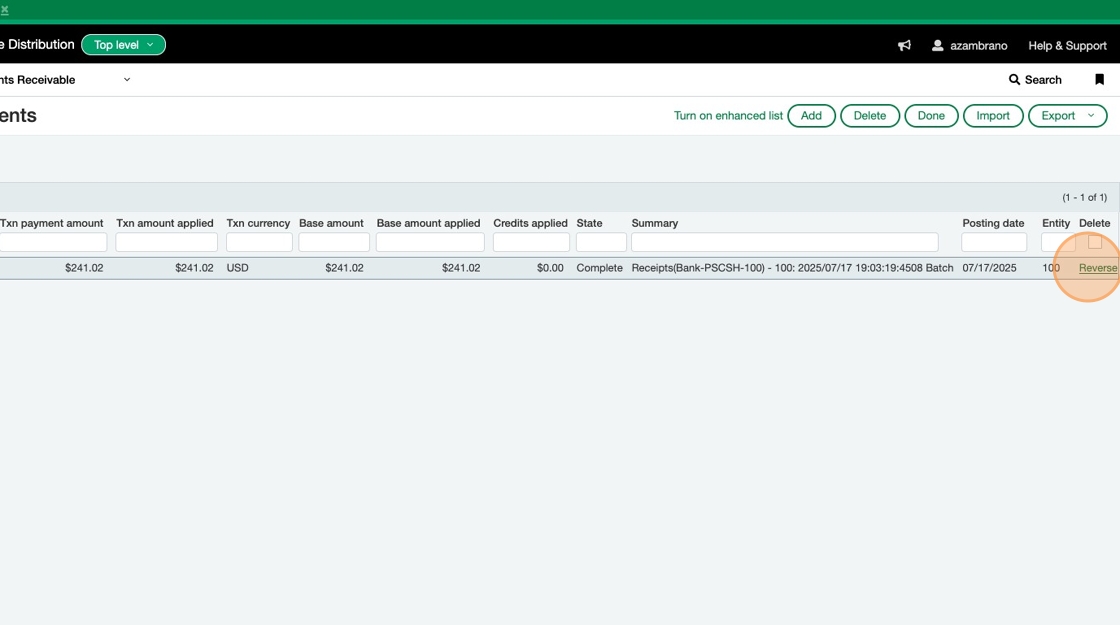
17. Select the date of the transaction for the payment

18. Click this checkbox.

19. Click this field Reverse as of and manually enter the same transaction date you selected earlier

20. Click Submit

21. You will now see that the payment has been successfully reversed in Sage.

22. Switch to the Paystand Dashboard and click the back button.

23. Click Import Receivables

24. Click the Add invoice numbers field.

25. Paste the invoice number of the payment that was reversed.

26. Click Import

27. A confirmation message will appear indicating that one invoice has been updated.

28. Close the current tab

29. Click Refresh to reload the Receivables tab.

30. You will now see that the invoice previously marked as “Paid” is listed under “Unpaid.”
